Here’s how to activate:
1. Install TurboFast VPN Chrome Extension
- Go to the Chrome Web Store and search for TurboFast VPN.

- Click Add to Chrome, then tap Add Extension.

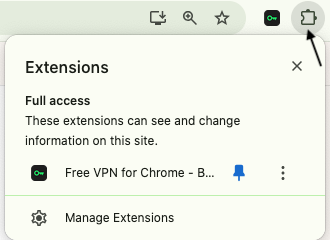
2. Open the Extension
- After installation, click the TurboFast VPN icon from your Chrome toolbar.
3. Start the App
- Tap the extension icon and select Get Started.
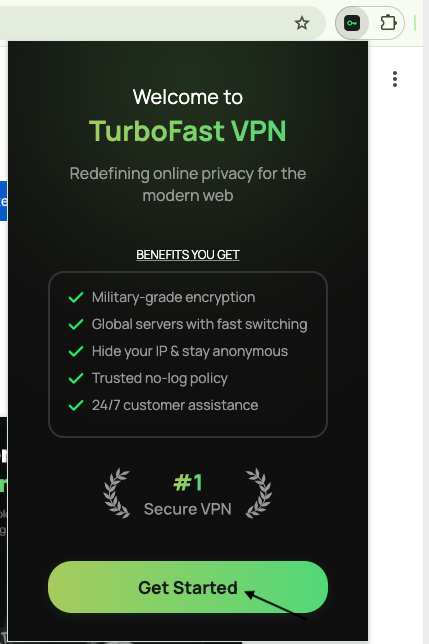
- You will now see the option to enter your Activation Code.
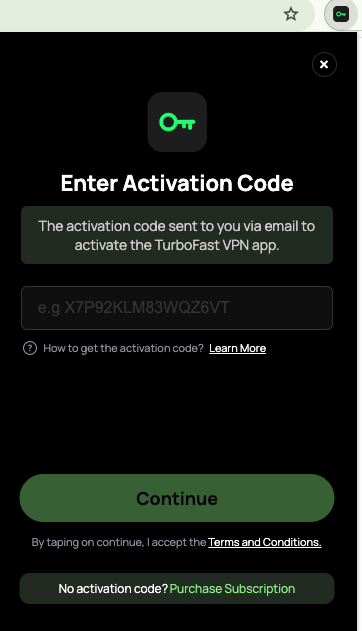
4. How to Get Your Activation Code
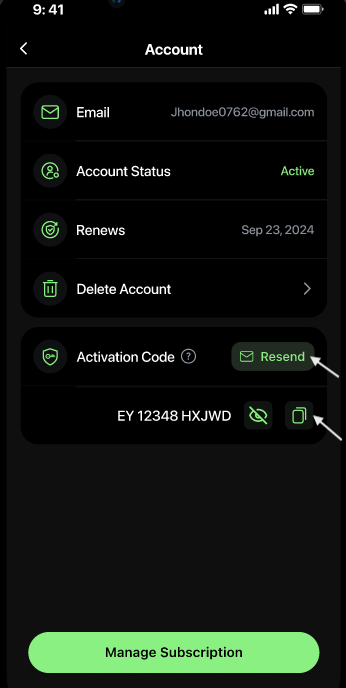
- You can access your activation code in the following ways:
- Email: You will receive the activation code on your registered email after entering the OTP on your device.
- Account Section (Logged-in iOS/Android/Mac Device): Go to Account Section → Activation Code
- Copy and paste the code, or
- Tap Resend to receive the code again via email.
5. Enter the Activation Code
- Paste the activation code into the app to confirm your login.
- Once verified, you’ll get full access to TurboFast VPN services.
6. Start Browsing Securely
- Select your preferred server location and tap Connect.
- You can now browse securely and privately with TurboFast VPN.
Need Help?
If you face any issues with login or activation, contact TurboFast VPN Support at: vpn.support@turbofast.io
Was this article helpful?
That’s Great!
Thank you for your feedback
Sorry! We couldn't be helpful
Thank you for your feedback
Feedback sent
We appreciate your effort and will try to fix the article